
How to Choose a Hosting Provider for a WordPress Site
Compare WordPress hosting by workload, infrastructure, support, and renewal costs. Use this practical guide to find a plan that fits your site and budget.

Choose a WordPress host by matching its infrastructure, support, and plan limits to your site’s workload—not by choosing the lowest introductory price. Check how resources are allocated, what backups and security protections are included, and how renewal fees compare with the initial offer. Then confirm that support can help with WordPress-specific issues.
A small brochure site, a busy WooCommerce store, and a publication with traffic spikes place different demands on a server. Knowing your audience, plugins, traffic patterns, and growth plans helps narrow the options before you compare shared, VPS, cloud, or managed hosting.
The guide below explains what hosting providers handle, how to estimate your needs, and which plan details deserve close attention. Use the comparison table to understand the main hosting types, then check support, limits, renewal terms, and migration arrangements before committing.
- Match hosting resources to your site’s features, traffic patterns, and growth plans.
- Compare shared, VPS, cloud, and managed plans by both infrastructure and included responsibilities.
- Check renewal terms, limits, backup and support scope, and extra charges—not only the introductory price.
- Choose a provider with a clear upgrade path and a migration process that fits your technical capacity.
What a WordPress Hosting Provider Actually Does
The Server Behind Your Site
A hosting provider stores your WordPress files and database on a server, then delivers them when someone visits your site. That server also runs the software WordPress needs, such as a compatible PHP version and database service. The provider’s infrastructure and configuration affect page response, uptime, and how reliably the site handles requests.
- ☐ Confirm the plan supports current WordPress requirements.
- ☐ Check what backup schedule and restore process are included.
- ☐ Find out which security and software updates the provider manages.
- ☐ Review the support channels and their stated availability.
Providers differ in how they manage server resources, software updates, caching, and security controls. One plan may give you a control panel and leave most settings to you; another may configure the environment specifically for WordPress. If a provider lists fees in another currency, anlık döviz fiyatları can help estimate the plan’s cost in your own currency.
Hosting is only one part of site performance: a heavy theme, unoptimized images, or several demanding plugins can still slow pages. The host’s job is to provide a dependable environment, but site owners remain responsible for content, plugin choices, and many configuration decisions. Check which tasks the plan handles automatically before assuming maintenance is included.
- Server space for site files and databases
- A runtime compatible with WordPress
- Network access for visitor requests
- Plan-specific tools and support
Where Provider Duties End
Read the service description to separate managed hosting tasks from your own responsibilities. A provider may maintain server software and monitor its infrastructure while leaving WordPress core, plugins, and themes for you to update. Other plans include more hands-on maintenance, but the exact scope varies, so look for a written list of covered tasks.
Backups illustrate why details matter: a plan may create copies without promising long retention or easy restoration. Find out how often backups run, how long they remain available, and whether you can restore a single site or database. Keep an independent backup when the site’s content or orders would be difficult to recreate.
Support scope matters when a site breaks after a plugin update or a configuration change. Some teams troubleshoot server faults but will not diagnose third-party code; others offer WordPress guidance within defined limits. Before buying, ask how support handles a problem that crosses the line between the hosting platform and your website.
How to Match Hosting to Your Site’s Workload
Assess Traffic and Workload
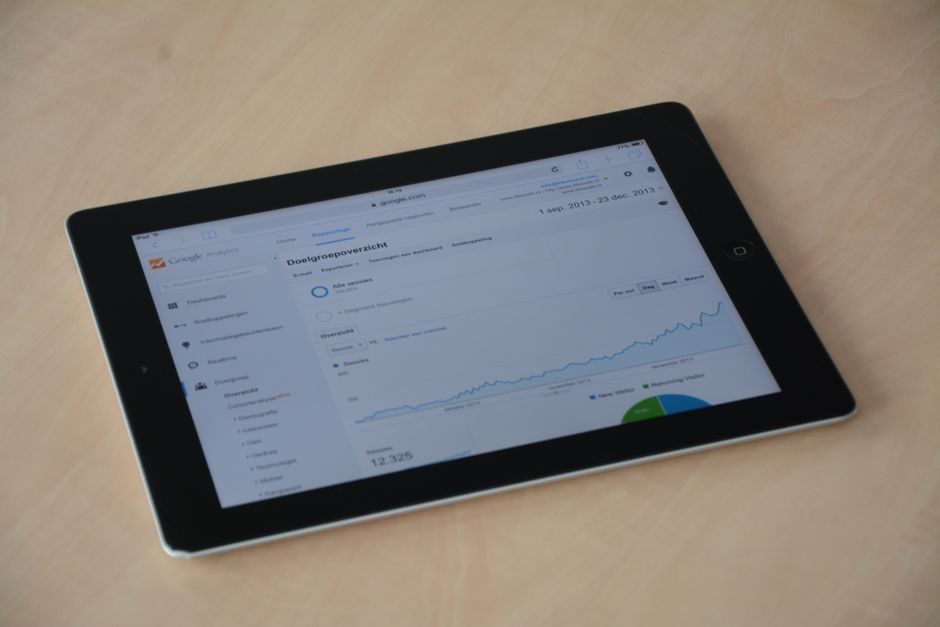
Start with what the site does and when visitors use it, rather than relying on a single traffic figure. A portfolio with mostly static pages has a different workload from a WooCommerce shop processing orders or a membership site serving logged-in users. Consider busy periods, scheduled campaigns, and whether traffic arrives steadily or in sharp bursts.
Check your current analytics and hosting dashboard for trends in visits, bandwidth, storage, and resource use. If the site is new, use its planned features as a guide: product images, searchable catalogs, user accounts, and video can all add demand. Treat estimates as starting points, then choose a plan that allows a practical upgrade.
Logged-in sessions and dynamic pages may not benefit as much from full-page caching as public articles do. An online store, for example, must keep cart and account information separate for each visitor. Ask whether the host supports the caching setup your plugins need and how it handles traffic surges without disrupting checkout.
- List key site features and plugins.
- Review traffic and resource trends.
- Identify seasonal or campaign peaks.
- Allow for growth without overbuying.
Check Resources and Limits
Look beyond storage and bandwidth to find the limits that shape day-to-day use. Providers may set constraints on CPU, memory, concurrent processes, file counts, or database activity, and those limits affect sites differently. A large media library needs storage, while a plugin-heavy store may need more processing capacity during busy periods.
Ask what happens when a site approaches a limit: does the provider alert you, throttle requests, or recommend an upgrade? A plan described as unlimited may still have fair-use conditions or practical resource boundaries in its terms. Read the details and check whether the provider explains how limits are measured and enforced.
Consider the route to a larger plan before the site outgrows its current one. A straightforward upgrade can reduce disruption, while a move to a new server type may require planning, testing, or migration help. Confirm whether resource changes can be made without a long outage and whether your present configuration will carry over.
Shared, VPS, Cloud, and Managed WordPress Hosting
Understand the Main Types
Shared hosting places multiple sites on a server, making it a straightforward starting point for modest workloads, though resources are shared. A VPS provides a more isolated allocation of server resources and often greater control, but may require more technical management. Cloud hosting uses a network of servers, with capacity and architecture varying by provider and plan.
Managed WordPress hosting describes the level of service as much as the underlying hardware. These plans commonly handle some WordPress-focused maintenance, staging, or performance configuration, but the included work differs between providers. A managed plan can run on shared, VPS, or cloud infrastructure, so compare both the service and the technical foundation.
For a provider that bills in a foreign currency, döviz kurları çevirici can help convert quoted fees and compare their likely budget across plans. Currency conversion gives you a clearer estimate, but the final amount may also depend on the provider’s billing currency, taxes, and payment fees. Check those terms before comparing totals.
- Shared: simpler setup, shared resources
- VPS: more isolation and control
- Cloud: distributed infrastructure, provider-specific design
- Managed: WordPress-focused services, variable scope
| Type | Typical fit | Main trade-off |
|---|---|---|
| Shared | Modest, straightforward sites | Resources shared with other sites |
| VPS | Sites needing more control | May require server management |
| Cloud | Workloads suited to distributed infrastructure | Architecture varies by provider |
| Managed WordPress | Owners seeking platform-focused services | Included tasks and restrictions vary |
Choose by Control and Care
Choose shared hosting when the site is relatively simple and you value ease of setup over fine-grained server control. A VPS may suit a developer or business that needs specific software settings and can manage them, or can pay for administration. Cloud options are worth comparing when the provider’s design fits variable demand or resilience requirements.
Managed WordPress can suit owners who would rather delegate defined maintenance tasks and receive support tailored to the platform. It is not automatically the best choice for every site: restrictions on plugins, server access, or custom configurations may affect a particular setup. Confirm that the host supports your essential tools before moving an established site.
Compare the workload you expect with the responsibilities you can realistically handle. A technically capable team may prefer a configurable VPS, while a small business without server expertise may value managed services. If your needs are uncertain, prioritize a clear upgrade path, migration support, and transparent limits over a plan whose features you cannot use.
Compare the amount you will pay over the period you expect to use the service, not just the advertised starting rate.
Compare Plans Beyond the Introductory Price

Calculate the Ongoing Cost
Compare the amount you will pay over the period you expect to use the service, not just the advertised starting rate. Introductory pricing may apply only to the first term, while renewal charges, required billing periods, or add-ons change the ongoing cost. Check the renewal price and the conditions for receiving the initial offer before choosing.
- Write down the initial term and renewal terms.
- Add any paid backups, email, or security tools you need.
- Check applicable taxes and payment-related fees.
- Review cancellation rules before purchasing.
Include services you may need separately, such as backups, email, domain registration, staging, or a security feature. A low headline fee can become less attractive if essential tasks require paid extras or a more expensive plan. Conversely, a higher-priced package may cover tools you would otherwise buy, so compare the full set of services.
Check how billing works if a plan is quoted in a currency different from your own. The charged amount can vary with exchange rates, and payment providers may add conversion or transaction fees. Compare the provider’s billing currency, renewal terms, taxes, and any separate charges so your budget reflects more than the displayed starting price.
- Compare renewal terms with the introductory offer.
- Include essential add-ons in your estimate.
- Check billing currency, taxes, and payment fees.
- Confirm cancellation and refund conditions.
Weigh Support and Reliability
Compare support by the problems it can solve, not just by the number of contact channels. Look for the stated response process, hours of availability, and whether staff can advise on WordPress or only on server infrastructure. For a business site, knowing how urgent outages are handled can matter more than access to a particular channel.
Review the provider’s uptime terms and what remedy, if any, applies when service falls below its commitment. Such terms do not prevent interruptions, so also check for monitoring, incident updates, and a clear escalation route. Look for recent, specific service information rather than relying on a broad promise of reliability.
Test the practical details before moving a live site: ask about migration, staging, backup restoration, and the process for resolving a failed update. A provider that explains these steps clearly makes it easier to assess operational risk. Keep your own copy of the site and confirm how you can leave if service no longer fits.
Calculate Renewal Costs and Your Real Budget
Map the Full Contract Cost
Compare the total cost over the period you expect to use the service, not only the advertised monthly rate. Add the renewal price, any setup or migration charges, domain fees, and paid backups or security features you would otherwise need. This makes plans with different billing cycles easier to compare on the same basis.
Check which features are included for the full contract term and which are promotional extras. A plan may bundle a domain or email service for an initial period, then bill for it separately at renewal. Record those changes beside the renewal rate so a lower first invoice does not conceal a higher ongoing cost.
Estimate the cost for the workload you actually expect, including likely storage or visit limits. If growth would force an upgrade, include that plan’s published renewal rate in your comparison rather than assuming the starter tier will remain suitable. Keep the estimates in one currency and use the same contract duration for every provider.
- Renewal rate and billing interval
- Domain, email, and setup charges
- Backup, security, and migration fees
- Upgrade cost if traffic grows
Allow for Currency Changes
If a host bills in a foreign currency, your final local-currency cost can shift between the day you compare plans and the day your payment is processed. Check your card issuer’s exchange-rate and foreign-transaction policies, and leave room in the budget for normal currency movement rather than treating today’s conversion as fixed.
For a dollar-denominated hosting invoice, dolar kaç TL can give you a quick reference for estimating its cost in Turkish lira before checking the payment provider’s final exchange rate and fees. The amount charged may differ because the transaction date, card conversion method, or bank charges can affect the final local-currency total.
Separate the hosting price from taxes and payment charges when comparing quotes. A provider may collect taxes at checkout, while a card issuer may add its own fee after the transaction. Review a recent invoice or checkout preview when available, and make sure your budget reflects the total amount likely to leave your account.
Check Support, Backups, and Migration Terms

Verify Help When Problems Happen
Confirm how you can reach support and when each channel is staffed before buying a plan. Live chat may be available around the clock, while phone support or specialist WordPress help may be limited to certain plans. Check whether the team handles server-level faults, or only points you toward self-service documentation.
Ask what happens when a WordPress problem crosses the boundary between the host and a plugin or theme. A provider may diagnose server configuration but decline to debug third-party code, so knowing that limit helps you arrange a developer or maintenance service separately. Look for clear escalation steps for outages, failed updates, and site access problems.
Test the support experience with a specific pre-sales question about your site’s needs, such as PHP version control or staging access. A useful reply should address the question directly and explain any plan limits. Treat vague assurances as a reason to seek written clarification, especially if support quality will matter during a migration or outage.
- Check support hours and contact channels
- Ask what WordPress issues are covered
- Confirm escalation for outages
- Test a specific technical question
Confirm Recovery and Transfer Details
Find out how often backups run, how long copies are retained, and whether you can restore files and databases yourself. A backup that exists but cannot be accessed promptly may not meet your recovery needs. Ask whether restores are included or charged separately, and whether backups are stored separately from the production server.
Clarify what a migration includes before scheduling it. Providers may transfer one site but exclude email, DNS changes, large media libraries, or custom server configurations. Ask who checks the migrated site, how long the old hosting account should remain active, and whether there is a safe way to test the new copy before switching visitors.
Keep an independent backup before any transfer, even if the host offers migration assistance. Save a copy of the database and site files, then verify that the archive can be opened or restored. This gives you a fallback if the move is delayed, content is missing, or the old provider closes access sooner than expected.
Watch for Common Hosting Selection Pitfalls
Question Impressive-Sounding Limits
Do not assume a large storage figure guarantees a fast or reliable WordPress site. Storage describes capacity, while performance also depends on server resources, caching, database handling, and how neighboring accounts are managed. Ask which limits apply to CPU, memory, processes, or simultaneous requests, and what happens when a site reaches them.
Treat claims such as unlimited traffic or bandwidth as policy descriptions, not proof that every workload is supported without restriction. Read the acceptable-use terms for thresholds, throttling, or upgrade requirements. A modest, clearly stated allowance with transparent overage handling can be easier to plan around than a broad promise with unclear conditions.
Separate performance claims from measurable service details. Look for information about server locations, available caching controls, PHP versions, and whether a content delivery network is included or optional. If a provider does not publish a key detail, ask support before purchasing and keep the answer with your plan comparison.
- Ask about CPU and memory limits
- Read fair-use and overage terms
- Check caching and PHP controls
- Get unclear plan details in writing
Avoid Lock-In and False Savings
Check whether you can leave without losing access to your domain, files, database, or email. Some services make cancellation and export steps less obvious than signup, so find the account-closure and data-transfer terms before committing. Keep domain registration under an account you control, or confirm how ownership and transfer authorization work.
A cheap plan can cost more if essential features require separate subscriptions or technical work. Price the extras you will genuinely use, such as staging, daily backups, malware cleanup, or email hosting, and compare them with an alternative plan that includes them. Do not pay for features simply because a sales page lists them prominently.
Avoid committing to a long prepaid term until you have checked support, site limits, and cancellation terms. If possible, begin with a shorter billing period that still fits your budget, then review uptime, response quality, and administration tools before extending. This limits the cost of discovering that the service does not fit your workflow.
Use a Practical Checklist Before You Commit

Match Plan Features to Needs
Write down the requirements that would make a host unsuitable before you compare final candidates. Include the site’s software needs, expected storage, traffic patterns, staging requirements, and any WooCommerce or membership functions that depend on reliable database performance. This prevents persuasive extras from distracting you from a missing essential.
- Choose a plan that fits the site’s current workload.
- Compare renewal costs and required add-ons.
- Confirm support, recovery, and exit terms before paying.
Check the plan against your current WordPress setup rather than a hypothetical future redesign. Confirm supported PHP versions, database access, SSL, staging, and the ability to adjust DNS or server settings when needed. If a developer maintains the site, ask which controls they need so the hosting account supports their actual workflow.
Use a short comparison sheet to record each provider’s renewal cost, resource limits, support scope, backup policy, migration terms, and cancellation rules. Mark unknowns clearly instead of treating them as included. A side-by-side record exposes trade-offs, such as lower cost paired with limited restore options, before payment details are entered.
- List requirements that are non-negotiable
- Verify software and server controls
- Record renewal cost and limits
- Mark unanswered questions for follow-up
Run Final Checks Before Purchase
Before checkout, save a copy of the plan description and terms that apply to your account. Confirm the billing period, renewal amount, refund window, tax treatment, and any limits that support clarified for you. This record helps resolve misunderstandings later and gives you a reference if the advertised plan changes.
Make sure the provider’s operational details suit the people who will manage the site. Check whether account access supports more than one administrator, whether staging is available on the chosen tier, and whether you can control backups or restore points. For a business site, confirm who receives outage alerts and how access can be handed over safely.
Choose a host only after the remaining risks are acceptable, not because every box appears to be checked. If a critical detail remains unclear, pause and ask for an answer before buying. Once the account is active, test the dashboard, create a backup, and document support contacts while the site is stable, not during an emergency.
Frequently asked questions
Does every WordPress site need managed hosting?No. Managed hosting can reduce routine server administration and may include WordPress-focused tools, but it is not essential for every site. A technically confident owner with modest needs may prefer a general shared or VPS plan, provided they can manage updates, backups, and security. Choose managed service when its support and workflow benefits justify the added cost and any restrictions.
How much hosting capacity should a new WordPress site have?Start with a plan that supports the site’s software and expected workload without paying for unused capacity. Consider storage, memory, processing limits, database activity, and whether the site serves dynamic features such as a store or membership area. Ask how upgrades work and whether they require downtime; that makes it easier to begin modestly without choosing a dead end.
Should I choose a hosting server near my visitors?A nearby server can reduce network delay, but it is not the only factor affecting page speed. Caching, image size, theme and plugin code, and the site’s database work also matter. If visitors are spread across regions, ask whether a content delivery network is available and test the site from relevant locations after setup rather than relying only on the server address.
Can I change WordPress hosts later?Yes, a WordPress site can usually be moved by transferring its files and database, then updating DNS when the new copy is ready. The move can require extra steps for email, custom server settings, or large media libraries. Keep a verified backup, check the new site before switching visitors, and leave the old account active until the transfer is confirmed.
Choose a Host You Can Operate With Confidence
A good hosting choice balances the site’s workload with clear resource limits, dependable recovery options, useful support, and an affordable renewal price. Compare the complete ongoing cost rather than the opening discount, and verify migration and cancellation terms before signing up. The right plan is not necessarily the largest or cheapest; it is one whose trade-offs you understand and can manage.
Your next step is to list the site’s non-negotiable technical needs, then compare a small group of providers using the same cost and support checklist. Ask each provider to clarify any missing detail in writing. Once you choose, test backups and account access while the site is stable, and review the plan again when traffic or site functionality changes.

Add WordPress Themes & Plugins as a preferred source on Google


